Consolidate-Classes
Consolidate Classes
Menu Command
Version
1.0.0 - 11/06/2023
This plug-in is written in Vectorscript (Pascal) and can be used in any version of Vectorworks 2019 or newer.
Description
Opens a dialog box allowing user to merge all objects in one Class to another existing Class with an option to delete the original Class after the operation.
Instructions
- Run the Consolidate Classes menu command.
- In the Merge Objects From Class List Browser on the left, select an existing Class to merge objects from. Only one Class may be selected at a time.
- In the Merge Objects Into Class List Box on the right, select a new Class for the objects to be merged into.
- Put a check in the Delete column to delete the original class after the operation has been completed.
- Selecting a Class in the List Browser on the left will remove that Class from the List Browser on the right and vice versa.
Dialog Box Explanation
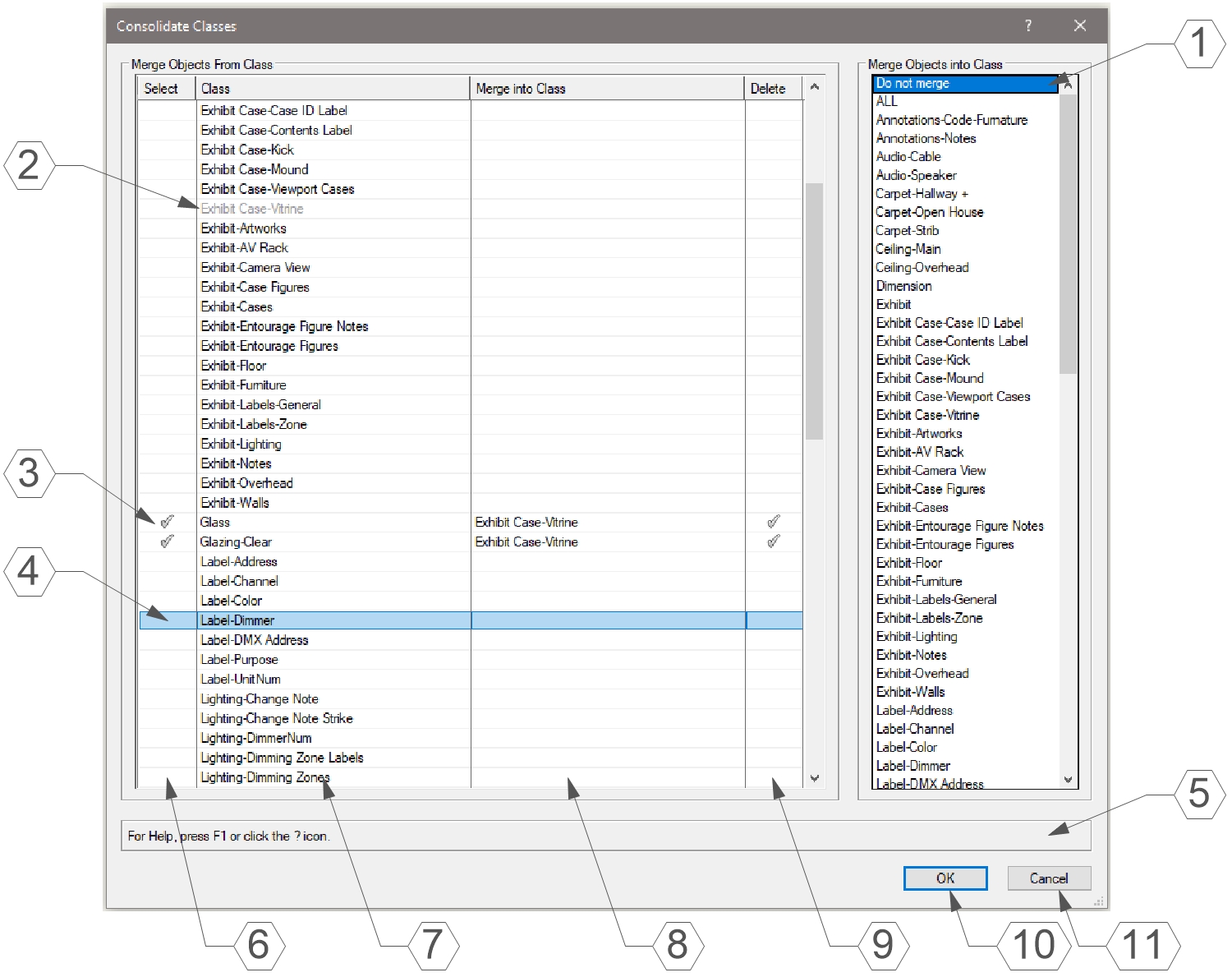
- List Box highlighting the Merge Into Class for the currently selected Merge From Class. If Do not merge is selected, the Merge From Class will be ignored.
- Classes selected from the Merge Objects into Class box will be shown in Gray and cannot be selected.
- Objects in Classes containing a checkmark in the Select column will be merged into Classes listed in the Merge Into Class column.
- The currently selected Class will be highlighted in the List Browser. Only one Class may be selected at a time.
- Help Box, mousing over any dialog box element will display an explanation of the element here.
- Column displaying a checkmark when objects from Class are set to be merged into another Class.
- Column listing possible Classes to merge from.
- Column listing current Class for objects to merge into.
- Place a checkmark in this column to delete the Class after merge operation.
- Pressing the OK button will close the dialog box and execute the merge operation, deleting any Classes with a checkmark in the Delete column.
- Pressing the Cancel button will close the dialog box without merging or deleting any Classes.
Installation Instructions
There are two methods of installation, direct download of the plug-in or through the JNC Tools Free Manager plug-in.
Direct Download:
- Download source plug-in file
- Place downloaded file inside the Vectorworks User Folder within the Plug-ins directory
- Restart Vectorworks
JNC Tools Free Manager
- Run the JNC Tools Free Manager menu command
- Select the Consolidate Classes command
- Press the Install / Update button
- Press Close to close the dialog box
- Restart Vectorworks
Adding the Plug-in to your Workspace
- Open the Workspace Editor by going to Tools - Workspaces - Edit Current Workspace
- Select the Menus tab
- In the box on the left, find and expand the JNC category
- In the box on the right, find a suitable menu to place the command in, such as Tools or Modify
- Click and drag the Consolidate Classes command from the box on the left to the desired menu location in the box on the right
- Click OK to close the editor
Localization Instructions
The plug-in can be localized to your native language without having access to the source code. This can be achieved by following the instructions below:
- Open the Plug-in Manager by going to Tools - Plug-ins - Plug-in Manager
- Select the Third-party Plug-ins tab
- Select the Consolidate Classes command
- Click the Customize button
- Select the Strings tab
- Double-click a category, such as Dialog Strings
- Select a string to edit and press the Edit button
- Write a new string and press the OK button until you are back to the Plug-in Manager
The categories for this plug-in are as follows:
- 3000 - Dialog Strings: These strings are used in the dialog box and can all freely be changed.
- 4000 - Dialog Help Strings: These strings are used in the Help Box at the bottom of the dialog box and can all be freely changed.
- 5000 - Misc Strings: These strings serve multiple purposes in the code, only strings 5000 and 5001 can be changed to match the localized names of the None and Dimension Classes.
Release Notes
| Date | Version | Note |
|---|---|---|
| 11/06/2023 | 1.0.0 | Initial release |
| 09/02/2024 | 1.0.1 | Added Help Box to dialog Made dialog box resizable |
Known Bugs
No Known Bugs
Feature Requests
| Date Logged | Request |
|---|---|
| 09/23/2025 | Add ability to save class mapping to worksheet for fast recall when running tool |
License
Copyright (c) Jesse Cogswell (JNC Tools)
Permission is hereby granted, free of charge, to any person or organization obtaining a copy of this software (the “User”) and associated documentation files (the “Software”), to use, reproduce, distribute, execute, and transmit the Software.
The User is not permitted to modify or attempt to reverse engineer the source code. The User may localize the Software using approved methods from within the Vectorworks software.
THE SOFTWARE IS PROVIDED “AS IS”, WITHOUT WARRANTY OF ANY KIND, EXPRESS OR IMPLIED, INCLUDING BUT NOT LIMITED TO THE WARRANTIES OF MERCHANTABILITY, FITNESS FOR A PARTICULAR PURPOSE, TITLE AND NON-INFRINGEMENT. IN NO EVENT SHALL THE COPYRIGHT HOLDERS OR ANYONE DISTRIBUTING THE SOFTWARE BE LIABLE FOR ANY DAMAGES OR OTHER LIABILITY, WHETHER IN CONTRACT, TORT OR OTHERWISE, ARISING FROM, OUT OF OR IN CONNECTION WITH THE SOFTWARE OR THE USE OR OTHER DEALINGS IN THE SOFTWARE.